What is an expectation
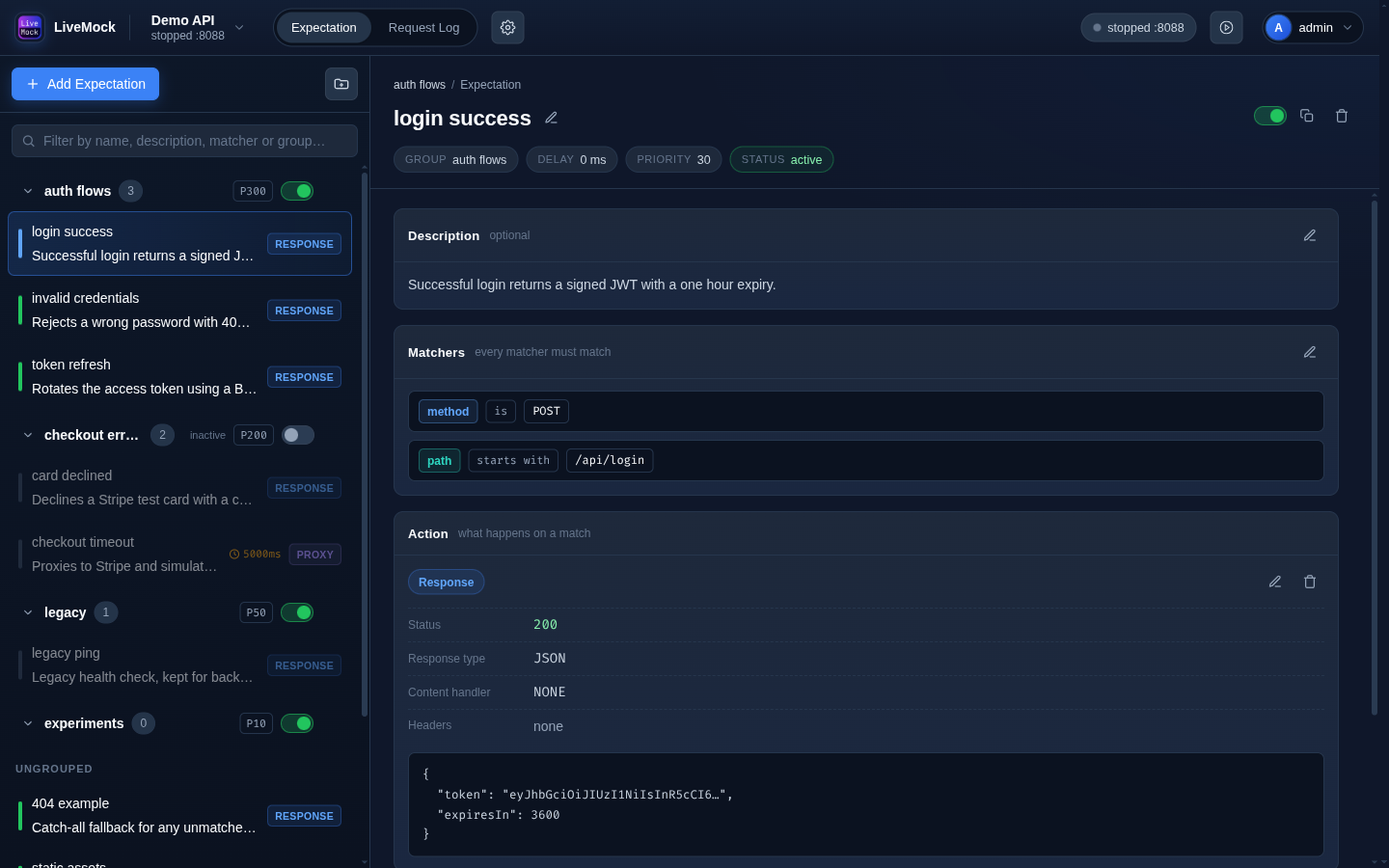
An expectation is the core building block of LiveMock. It says: when a request looks like this, answer it like that.
An expectation consists of:
- a set of matchers - each one checks one part of the request (method, path, header, query parameter, body parameter). The expectation matches only if every matcher succeeds; an expectation without matchers matches every request;
- an action - what to answer: a custom response, a proxy to another host, or a folder served from disk;
- timing and state - a delay, a priority, an active flag and an optional group.
Creating an expectation
Click Add Expectation in the left panel of the Expectation page. Enter a name, an optional description and a group (the default is ungrouped).
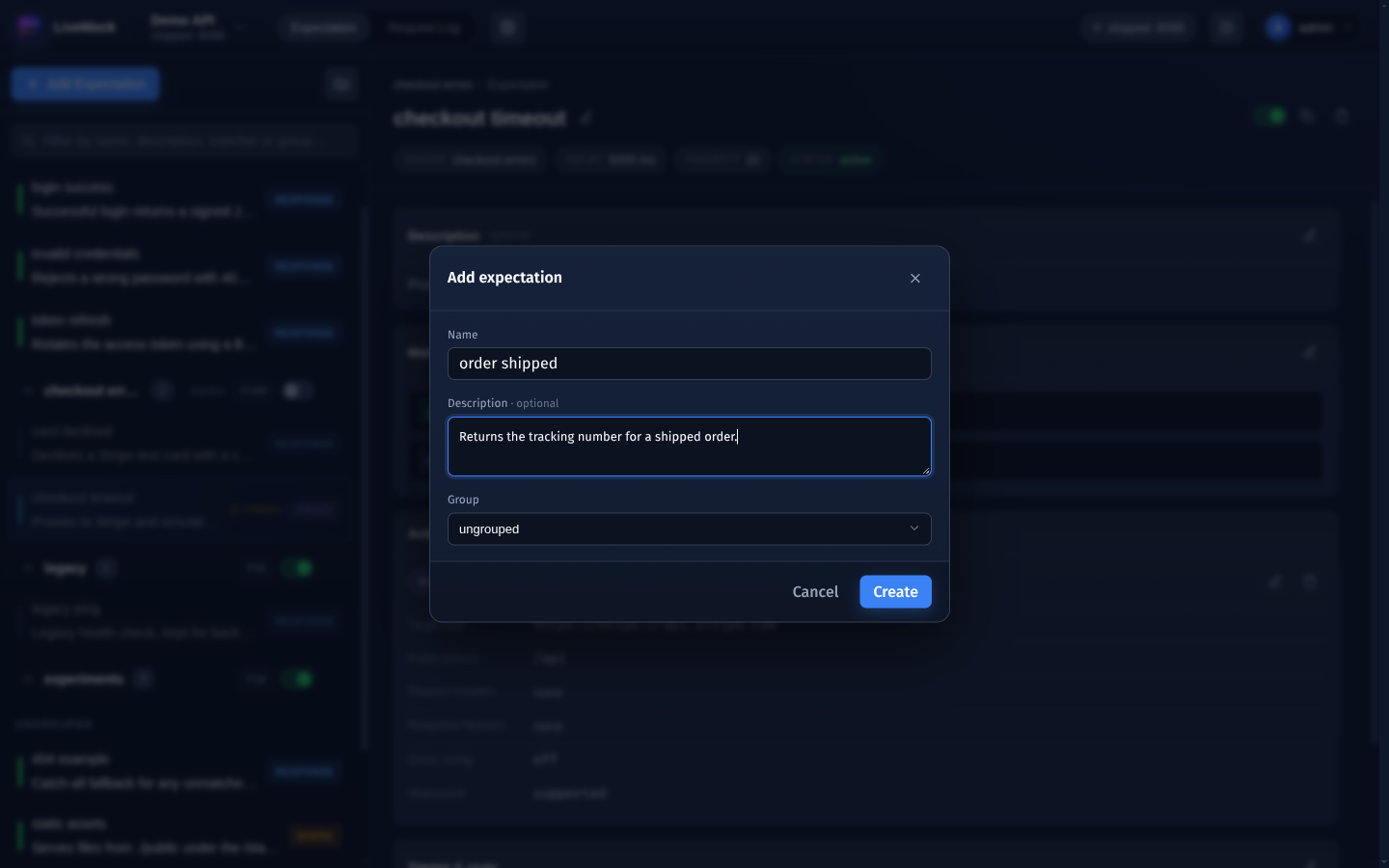
The new expectation appears in the list and opens on the right with an empty matcher set and no action. Matchers and actions are added from the cards in the detail view.
Properties
| Property | Meaning |
|---|---|
| Name | Shown in the list and in the request log ("matched" column). |
| Description | Optional free text, shown above the matchers. |
| Group | The group the expectation belongs to, or ungrouped. Groups affect the match order - see Groups. |
| Delay | Milliseconds to wait before the action runs. Useful to simulate a slow API. |
| Priority | Higher priority is evaluated first. |
| Active | An inactive expectation is skipped, as if it did not exist. |
| Matchers | The conditions on the request. |
| Action | The response: custom response, proxy or static folder. |
Delay, priority and the active flag are edited together through Edit timing and state on the Timing & state card.
Copying and deleting
The header of the detail view has three buttons:
- the active switch - same as the active flag in Timing & state;
- Clone - duplicates the expectation, including its matchers and actions, into the same group;
- Delete - removes the expectation after a confirmation.
Deleted an expectation's group? A captured request whose expectation no longer exists shows its id in the matched field instead of a name.